SOPs
How Customers Check Order Status
Videos (0) Ask a question about this SOP
How Customers Check Order Status
Language: English only (the source poster also has Bahasa Malaysia and Chinese)
Status: Draft — taken from the source poster; not separately re-approved as a Printlab-official SOP
Draft date: 13 Nov 2026 (Asia/Kuala_Lumpur)
Applies to: CS / Sales when telling a customer how to check a job, and Packing & QC or branch staff when releasing a self-collect order
Source: CHECK ORDER STATUS .pdf (Google Drive, Customer Service (CS) / Sales Department folder, files by David Ng). One-page poster titled “CHECK STATUS”, created in Adobe Illustrator and dated 11 Feb 2025, 3:02 PM (Asia/Kuala_Lumpur).
Related drafts: cs-sales-sop.md, cs-sales-processing-days.md, packing-qc-sop.md.
1. Purpose
- Show staff the customer-facing steps for checking a job on printlab.com.my.
- Record the portal status labels visible on the poster, including Order Processing and Order Completed (annotated Ready to Collect). The official final status name is Order Complete, which means Ready for Collect or Ship Out; those portal labels are the same status. Official in-between statuses also include Pending Artwork (after Complete Payment) and Order Processing (set by Designer after the client confirms the artwork).
- Support the collection rules: the customer must bring the order number and must check the status before coming (Customer_Service_SOP 3.4.xlsx, rules 29.0 and 30.0; Processing Day Aug-2026-Version V5.png).
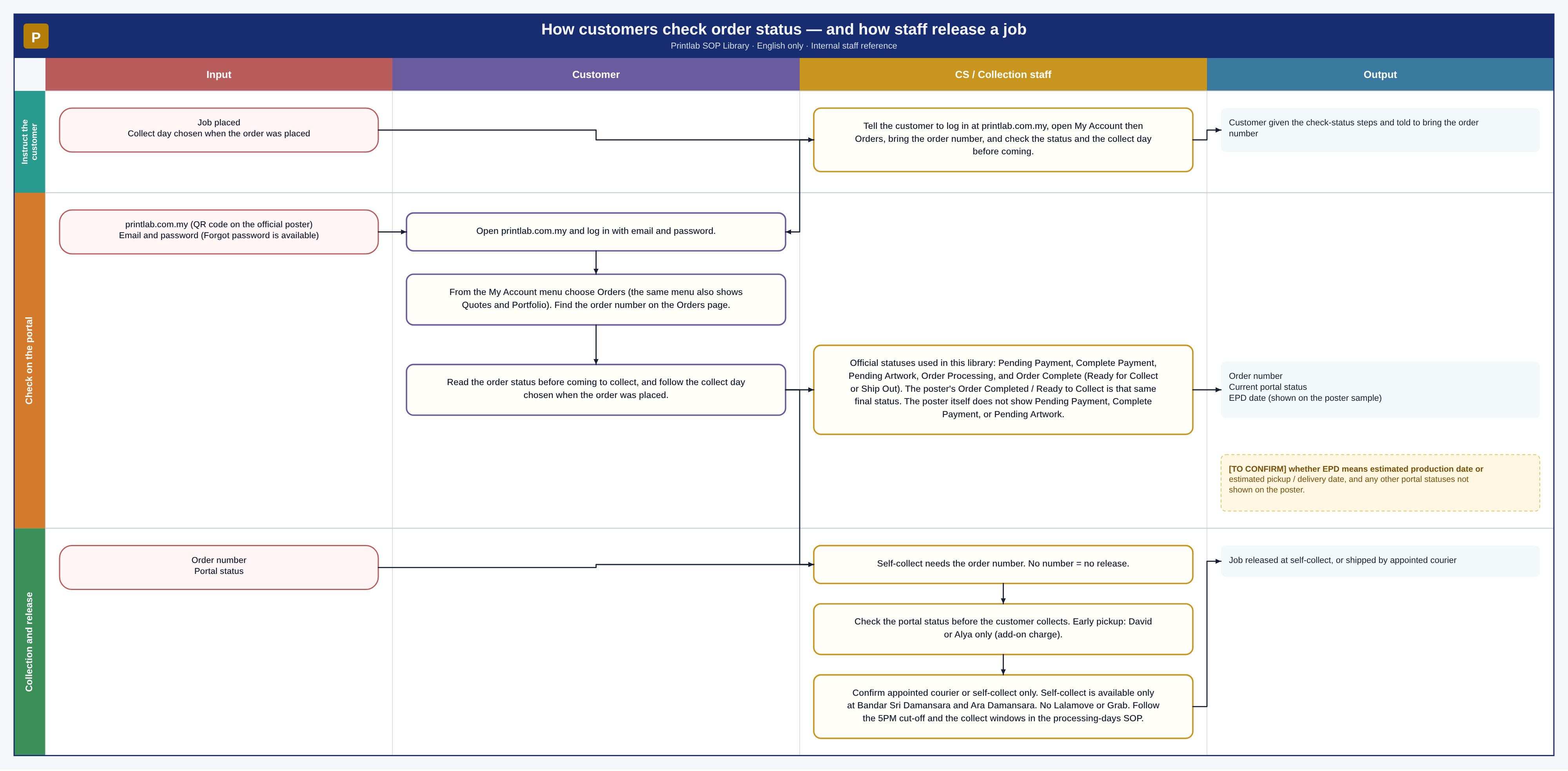
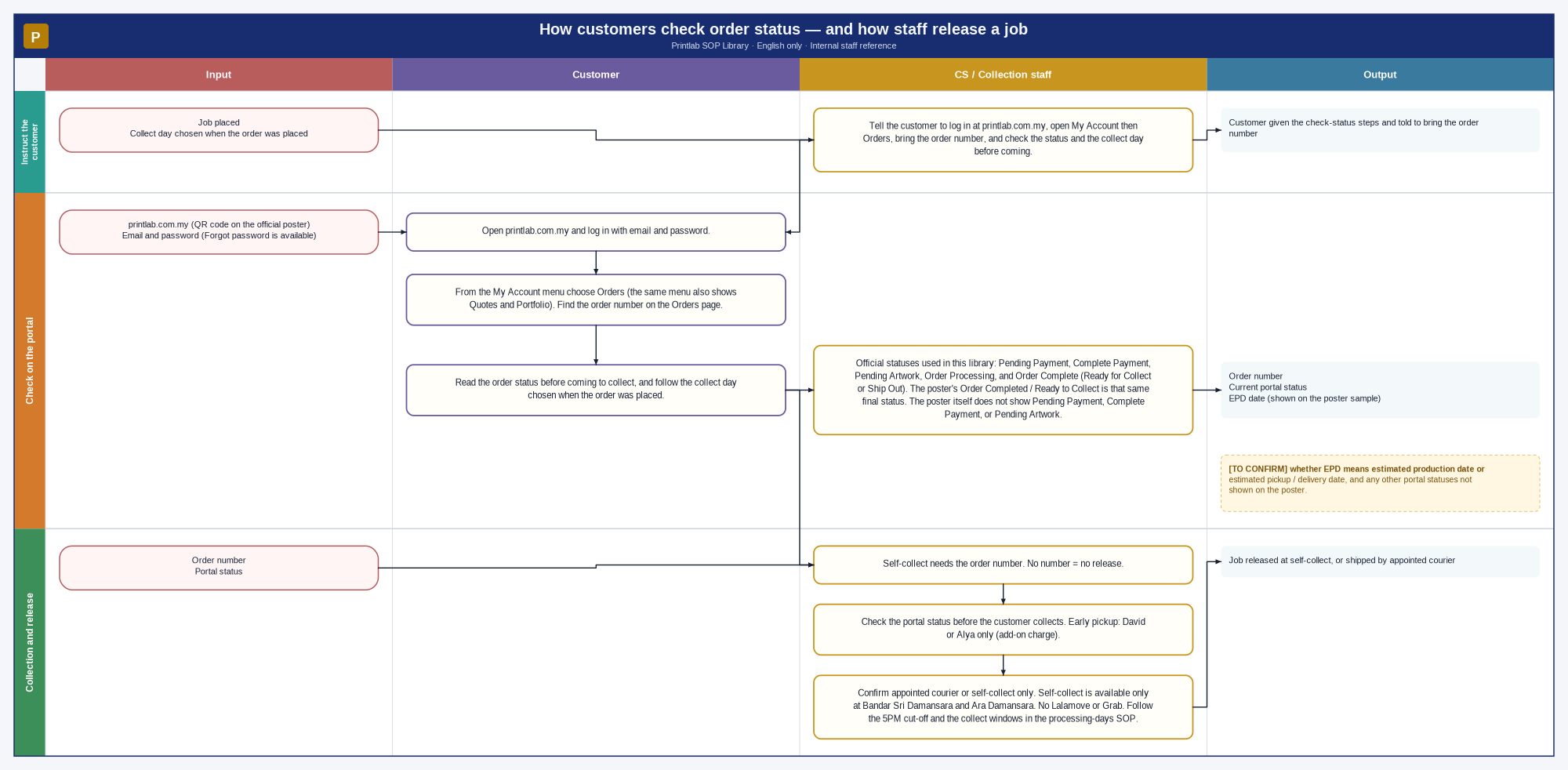
Workflow diagram
Tap or click the diagram for a larger view, or use the download links. On a phone, open the PNG to zoom and pan.
2. The official poster
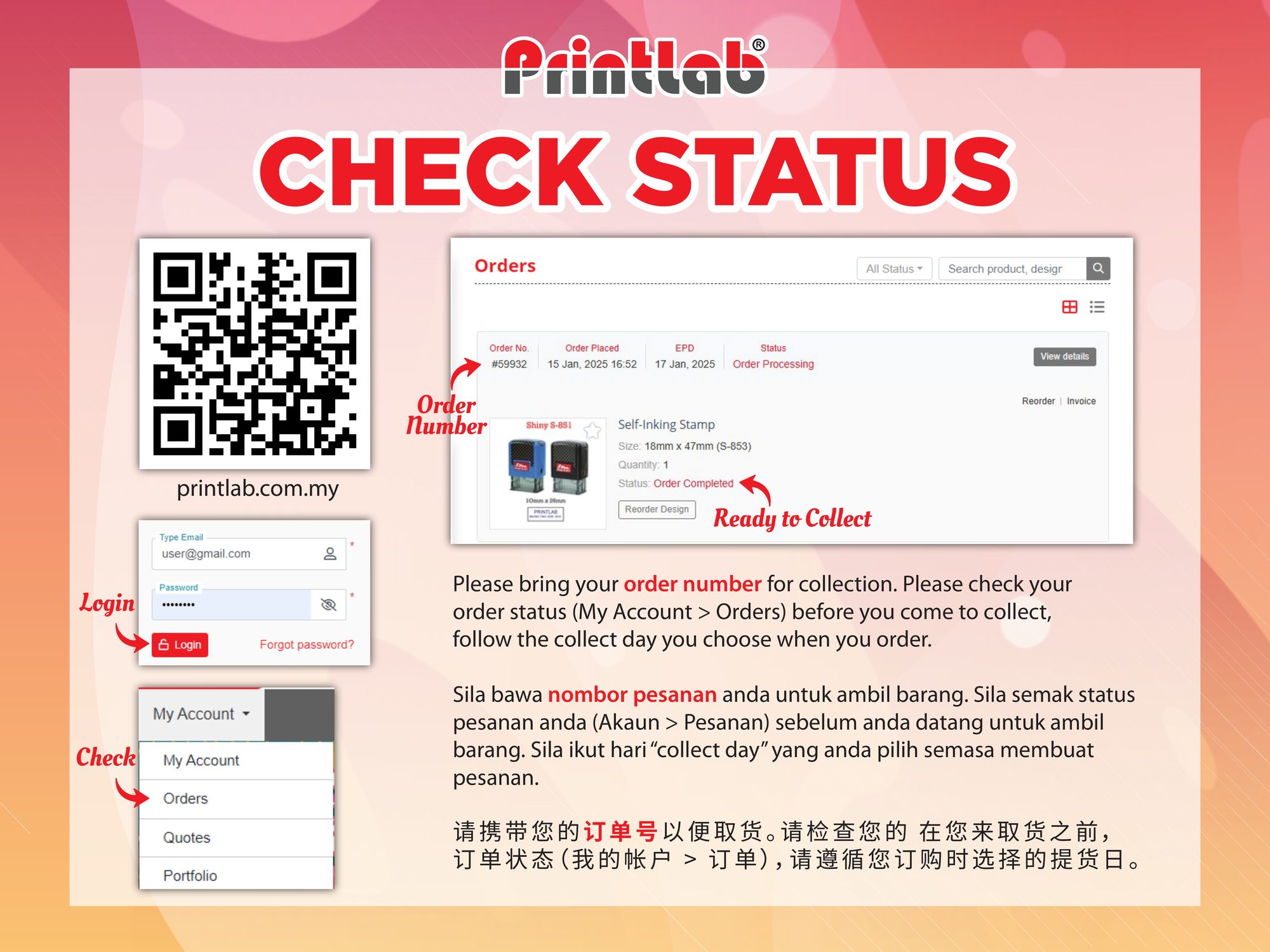
Click the image for a larger view.
3. Steps for the customer
- Open printlab.com.my (a QR code is printed on the poster).
- Login with email and password. The login box also shows “Forgot password?”.
- Check the job from the My Account menu by choosing Orders. The same menu also shows My Account, Quotes, and Portfolio.
- Find the order number on the Orders page. Bring that order number for collection.
- Check the order status (My Account > Orders) before coming to collect, and follow the collect day chosen when the order was placed.
The poster repeats the same instruction in Bahasa Malaysia and in Chinese.
4. Status labels visible on the poster
The sample Orders screenshot on the poster (order #59932, placed 15 Jan 2025, 16:52, EPD 17 Jan 2025, product Self-Inking Stamp) shows:
| Label on the screenshot | How the poster marks it |
|---|---|
| Order Processing | Shown as the status in the order header |
| Order Completed | Shown as the status on the line item. A red arrow labels this Ready to Collect. This is the same status as official Order Complete (Ready for Collect or Ship Out). |
| EPD | Shown as a date (sample: 17 Jan 2025). [TO CONFIRM] whether EPD means estimated production date or estimated pickup / delivery date |
| View details; Reorder; Invoice | Links on the same page |
The official names used in this library are Pending Payment, Complete Payment, Pending Artwork, Order Processing, and Order Complete (Ready for Collect or Ship Out). The poster’s “Order Completed / Ready to Collect” is that same final status. After Complete Payment the job is on Pending Artwork. After the client confirms the artwork, Designer changes the status from Pending Artwork to Order Processing. The poster does not show Pending Payment, Complete Payment, or Pending Artwork. [TO CONFIRM] any other portal statuses not shown here.
The page also has an “All Status” filter and a search box (“Search product, design”).
5. What CS and collection staff must still do
- Tell self-collect customers to bring the order number. No number = no release. (Customer_Service_SOP 3.4.xlsx, rule 29.0)
- Check the portal status before the customer collects. Early pickup: David or Alya only. (rule 30.0)
- Collection times and the 5PM cut-off are in
cs-sales-processing-days.md. (The August 2026 chart image still shows 4PM; that cut-off was superseded on 13 Nov 2026.) - Confirm appointed courier or self-collect. Self-collect is only available at Bandar Sri Damansara and Ara Damansara (Vincent, 13 Nov 2026). Appointed courier or self-collect only; no Lalamove or Grab. (rules 27.0, 28.0)
6. Checklist
- Customer has been told to log in at printlab.com.my and open My Account > Orders
- Customer has been told to bring the order number
- Customer has been told to check the status, and the collect day, before coming
- Staff have checked the portal status before release
- Staff understand that Order Complete means Ready for Collect or Ship Out, and that the portal’s “Order Completed / Ready to Collect” is the same status
Progress is saved on this device for version 0.5.
3. Steps for the customer
5. What CS and collection staff must still do
6. Checklist
Videos
No videos yet